
Use this guide when you want visitors to start a conversation from your website.
Webchat Widget is an on-site conversational entry point. In Hellotext, it is configured as a playbook and capture: you control how it appears, when it opens, what it says first, and whether visitors can continue through another channel such as WhatsApp.
It is not the AI agent itself. Think of it as the front door on your site. After a visitor starts a conversation, your team, Inbox rules, AI playbooks, or custom agents can handle the next step depending on your setup.
The editor groups settings into cards and shows the webchat preview on the right. This helps you connect each component to the visitor experience.

What Webchat Widget does
Webchat Widget lets customers message your business directly from your site.
It can:
- Show a launcher on the pages where you install the widget.
- Open when the visitor clicks the launcher or, if configured, after the page loads.
- Display a short teaser before the visitor opens the chat.
- Start with a configured opening sequence.
- Let visitors ask for help, order guidance, product recommendations, or support.
- Send the conversation to the Inbox when a person needs to reply.
- Continue through WhatsApp when channel handoff is configured.
- Work alongside AI playbooks, support playbooks, custom agents, routes, and response rules.
Webchat works best when the site needs a simple way for visitors to ask questions without leaving the page.
When to use it
Use Webchat Widget when:
- Visitors often need help before they buy.
- Your team wants a visible chat entry point on the storefront.
- You want product recommendation, support, or order questions to start from the website.
- You want to invite visitors into a conversation without relying only on SMS, WhatsApp, or social channels.
- You want conversations to land in the Inbox with the right team process.
- You want to offer WhatsApp continuation after the visitor starts on the site.
It is especially useful when paired with Instant Answers, Smart Recommender, Order-Update Delight, Return & Exchange Helper, Order Cancellation Assistant, or a focused Custom Agent.
When not to use it
Do not use Webchat Widget as a replacement for every other playbook.
Use a campaign when you need a one-time announcement to a selected audience.
Use a journey route when the customer experience must follow explicit steps, waits, conditions, and assignments.
Use a product or support AI playbook when the main job is the agent’s reasoning, not the website entry point. Webchat can start the conversation, but the agent still needs its own mission, knowledge, and handoff rules.
Use checkout opt-in, forms, QR codes, or shareable links when the main job is collecting consent or profile data instead of starting an on-site chat.
What it needs before launch
Before enabling Webchat Widget, confirm:
- Your website or commerce platform is connected, or you know which installation method you will use.
- Your installation method is ready: Hellotext.js, the WooCommerce plugin, or a compatible VTEX or Fenicio integration.
- You know which website and pages will include the widget.
- The team knows who owns new webchat conversations in the Inbox.
- The opening message explains what the visitor can ask.
- Handoff to WhatsApp is configured if you want visitors to continue there.
- Any AI playbook or custom agent that should answer webchat conversations is ready.
- Response rules and business hours match the level of service you want for webchat.
For setup validation, use Verify your data and signals after setup.
What you can configure
Open Playbooks, click Explore playbooks, find the Capture group, and choose Webchat Widget. If a playbook of this type already exists, its editor opens.
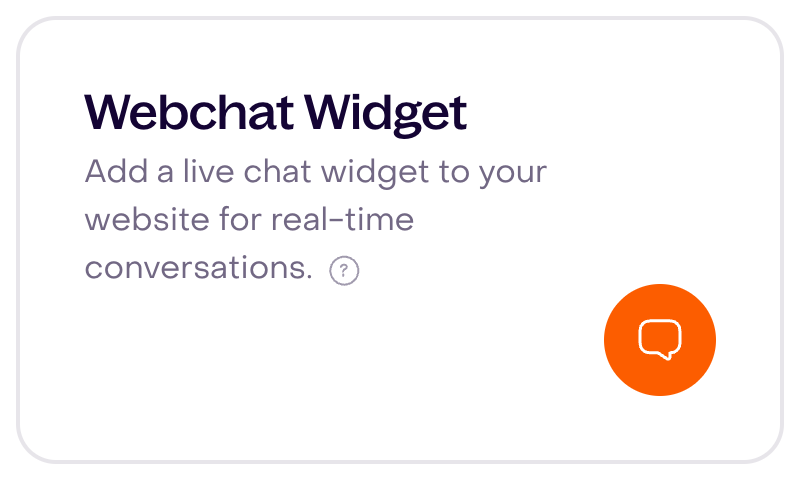
Webchat Widget includes:
- Appearance: brand color, typography, launcher, header, conversation colors, logo, and Hellotext branding.
- Behavior: placement, click-to-open or automatic opening, delay, first-visit behavior, and once-per-session behavior.
- Opening sequence: the first messages shown in a new webchat conversation.
- Teaser: the small invitation that appears before the visitor opens the chat.
- Channels or handoff: whether to show WhatsApp, restrict continuation to WhatsApp, and which WhatsApp number to display.
- Installation: automatic installation options or manual installation instructions.
You do not need to customize every card. Start with the cards that shape the visitor experience: appearance, behavior, opening sequence, and handoff.
Design the appearance
The widget should feel like part of your site, but it should still be easy to notice.
Review:
- Launcher color, text color, notification style, and icon.
- Header display, business name, logo, and colors.
- Conversation background and message bubble colors.
- Button and carousel colors when those elements appear.
- Whether your plan allows removing Hellotext branding.

The preview lets you review the header, opening-sequence greeting, message field, and launcher together. The bubbles in this view are editor examples.
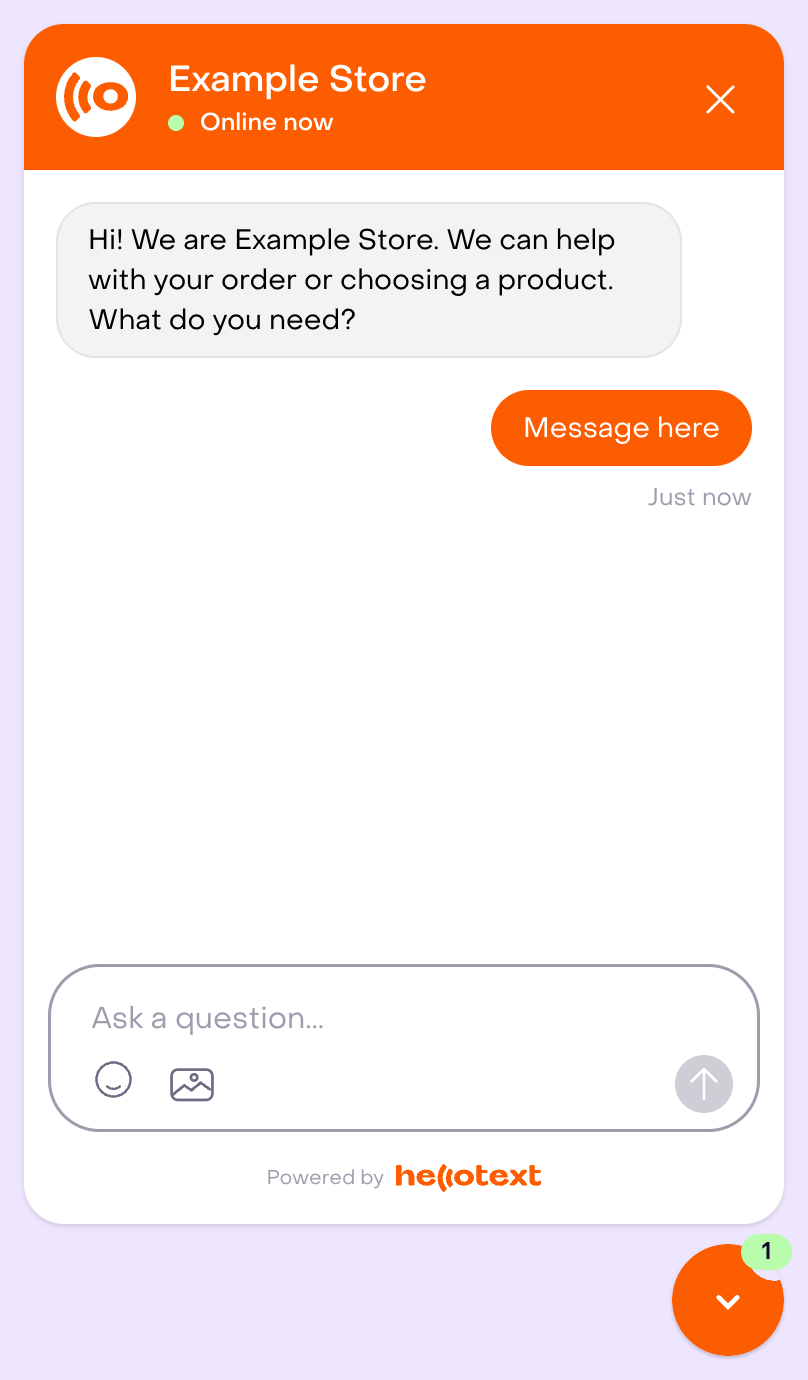
Test on desktop and mobile. The launcher should not cover checkout buttons, add-to-cart buttons, support links, cookie banners, or other important site controls.
Choose behavior carefully
For a first launch, use click-to-open unless you have a clear reason to open automatically.
In Behavior → Opening, select Automatically on page load to reveal the delay and limits. You can open immediately or after 5, 10, or 30 seconds. Use First visit only and Once per session where appropriate; the example waits 5 seconds and has both limits selected. Automatic opening can also interrupt browsing.

Placement matters. Bottom right is usually familiar to visitors, but use the position that does not conflict with your store layout, mobile navigation, or checkout controls.
Write the opening sequence
The opening sequence should help visitors choose what to do next.
Keep it short:
- Welcome the visitor.
- Name the main things they can ask.
- Offer one or two useful paths, such as order help, product recommendation, or talking to a person.
- Avoid long policy text in the first message.
Open Opening sequence and enter the greeting in the editor. New message adds another message to that sequence; delays and schedules are also available. The preview reflects the text you edit. Keep the message specific without promising that webchat can solve everything by itself.

If an AI playbook or custom agent will answer after the conversation starts, make sure the opening sequence matches that agent’s actual scope.
Use the teaser intentionally
The teaser is the small prompt that invites the visitor to open the chat.
Use it to make the chat feel useful:
- “Need help choosing a size?”
- “Want a product recommendation?”
- “Have a question about your order?”
- “Need help before checkout?”
Avoid teaser copy that feels like a forced popup or a promise your team cannot keep.
In Teaser, turn on Teaser bubble to show the small prompt. Turn on Use custom opening sequence if you want different copy from the opening sequence. Review both messages to avoid repetition.

When Subscriber Booster is enabled for Webchat and allows its teaser, it can replace this message with a subscription invitation for an eligible visitor. The incentive depends on its configuration and the profile’s purchase history. Turning off only its teaser does not disable the invitation inside the chat.
Configure channel handoff
In Channels, Display WhatsApp icon adds access to that channel. Restrict communication only to WhatsApp changes the experience to a WhatsApp entry point. Select the appropriate number; the editor also allows you to type a number. The fictional example number is not a connected channel and is not used to send messages.

Use WhatsApp continuation when:
- Customers may leave the site before your team replies.
- Your team prefers to continue longer conversations in WhatsApp.
- Mobile visitors are more likely to respond from WhatsApp than from the browser.
- You want the visitor to see a specific WhatsApp number for the business.
Be careful with restricting communication only to WhatsApp. Use that option when webchat should mainly act as a doorway to WhatsApp, not when you want visitors to continue replying on the site.
If conversations should be assigned to a teammate or team, configure the Inbox ownership path and review AI handoff to Inbox.
Install and test
Open the editor’s Settings icon to see installation options. Choose the method that matches your site:
- Automatic installation on VTEX or Fenicio, when the corresponding account is connected.
- Manual installation on a website with Hellotext.js.
- Manual installation on WooCommerce with the Hellotext plugin.
Manual installation shows the code and instructions. On this screen, I’ve installed my code or Install and activate enable the playbook and its workflow; use them only after preparing your site. A disabled automatic option indicates that the platform must be connected first. The editor preview lets you review appearance and text without activating the widget.

Then test the exact website where the widget should appear.
Check:
- The widget loads on the website and pages where you installed it.
- The launcher, teaser, and opening sequence appear correctly.
- Click-to-open or automatic opening behaves as configured.
- Delay, first-visit, and once-per-session settings work as expected.
- Messages arrive in the Inbox.
- Assignment, team ownership, and response rules behave as expected.
- WhatsApp handoff or continuation uses the correct number.
- Any connected AI playbook or custom agent answers only within its scope.
- The widget works on desktop and mobile without covering important site controls.
What to review after launch
During the first days, review:
- Which pages start the most webchat conversations.
- Whether visitors understand the opening sequence.
- Whether the teaser attracts useful conversations or creates noise.
- Whether conversations are answered quickly enough.
- Whether handoffs go to the right teammate, team, or WhatsApp number.
- Whether AI playbooks answer correctly or hand off when needed.
- Repeated questions that suggest you need Instant Answers, Return & Exchange Helper, Order Cancellation Assistant, a Custom Agent, better policy content, or better site copy.
- Opt-ins, orders, attributed revenue, response health, and missed replies when relevant.
Tune one part at a time: placement, trigger, delay, teaser, opening sequence, handoff, or the playbook that answers after the conversation starts.
Related guides
- Capture tools overview
- Subscriber Booster playbook
- Property Collector playbook
- Playbook library by mission
- How to enable a playbook
- How to customize a playbook safely
- Inbox and conversations overview
- AI handoff to Inbox
- Response times and response rules
- Smart Recommender playbook
- Order-Update Delight playbook
- Instant Answers playbook
- Return & Exchange Helper playbook
- Order Cancellation Assistant playbook
- Custom Agent playbook
- Verify your data and signals after setup