
Response times help your team understand how quickly customers receive replies and which conversations need attention first.
Response rules define the targets Hellotext uses to decide whether a customer wait is on track, at risk, delayed, or overdue.
Response health is separate from the conversation lifecycle. An assigned or unassigned conversation can need attention while it remains open. Keep reading: Conversation lifecycle in Inbox.
Response rules are available on Pro and Enterprise plans.
What response rules do
A response rule sets two targets:
- First response to new conversations: the maximum time to respond to the first customer message in a new conversation.
- Subsequent replies: the maximum time to respond after the customer sends a new message in a conversation that is already active.
Hellotext uses these targets to show response health in conversations, teams, teammates, and reports. These are internal handling targets; they do not promise delivery, resolution, or continuous team availability.
The figure shows an existing Default response policy in a fictional account, with 5 minutes for both phases. These demonstration values are not a universal recommendation. The form was opened without changing or saving anything; its heading and both fields are complete, with the save footer omitted.

How response timers work
When a customer sends a message that requires attention, Hellotext starts a response timer.
The first wait in a new conversation window uses First response to new conversations. Later customer turns use Subsequent replies. The phase depends on the conversation window opened by the message, rather than whether that person has ever received a reply. A message classified as an automatic reply or as activity that does not open a response obligation may not start a timer.
While a phase has an active timer, further customer messages do not restart it; they belong to that same wait. Do not treat every message as a fresh full response window.
A recorded handling reply can settle the wait: a message from a person, playbook, journey, or AI agent that the system recognizes as an accountable handling reply. A teammate reaction to a received message can also count. Recording uses the time the response was created, with an update in the background; it does not wait for provider delivery confirmation. Meeting this target does not prove the customer read the message.
A response within the deadline meets the target. A late response records when the customer was answered and retains the breach; answering late does not erase the earlier outcome.
When AI hands off to a person, there can also be a human response wait beginning at handoff, using the Subsequent replies target. That obligation needs a human message or reaction; another AI or automation reply cannot satisfy it.
Internal notes, drafts, campaigns, and internal system activity do not count as responses. Closing or snoozing a conversation does not itself answer or cancel its SLA wait. Assignment, reading, attention, and replying are different states.
Business hours
Response deadlines use your configured Business hours.
If a customer writes during open hours, the timer starts immediately. If a customer writes while your business is closed, the timer starts when the business opens again.
If a deadline crosses a closed period, the remaining time continues counting when the business opens again. The calendar uses the business time zone. When no open weekday is configured, calculation falls back to continuous time; setting the whole week to closed does not suspend targets indefinitely.
Conceptual example: with opening hours of 09:00–18:00 and a 10-minute target, a Friday message at 17:57 consumes 3 minutes that day and the remaining 7 minutes from 09:00 on Monday, if the weekend is closed. This is not a captured conversation result.
The fictional account shown has Monday through Friday 9am to 6pm, with Saturday and Sunday Closed. These existing demonstration hours were viewed without editing. The complete list helps you recognize all seven days and the Business hours tab.

Opening Monday shows Open, Opens at 09:00, and Closes at 18:00. The switch was not touched, no times were selected, and nothing was saved. Set each open day to close later than it opens on the same day; this form does not represent an overnight shift. The heading and controls are complete, with the save footer omitted.

Default policy and channel rules
Every business has a Default response policy. This policy applies when there is no more specific rule for the conversation’s channel.
On Pro and Enterprise plans, you can create response rules for specific channels such as WhatsApp, SMS, Webchat, Instagram, or Messenger. When a channel-specific rule exists, Hellotext uses that rule for conversations on that channel. Otherwise, it uses the Default response policy.
Changes to a response rule apply to new response timers. Conversations that already have an active timer keep the deadline that was created when the timer started. Targets are positive whole minutes, and a specific rule is selected by technology; it is not a separate policy per number, recipient, or teammate.
The native New response rule selector offers WhatsApp, SMS, Webchat, Instagram, and Messenger. The figure focuses on all five options in the open menu; none was chosen and no rule was created. Offering WhatsApp here does not connect a number or change its service window or sending permissions.

What teammates see in conversations
In the conversation list, Hellotext may show response status pills to help teammates prioritize their work.
The possible response statuses are:
- Response at risk: an active timer has consumed at least 70% of its target using business hours.
- Response delayed: the deadline has passed while the timer is still recorded as active.
- Response overdue: the breach is recorded and has no associated response yet.
Delayed and overdue are not two different grace periods. Background recording may change the label after the deadline; the response timestamp still decides whether the target was met. Assignment at risk or Assignment delayed describe a different wait: the queue for assignment to a team member.
These indicators help teammates prioritize the conversations that need the fastest action.
What supervisors see in teams and teammates
In team and teammate views, Hellotext shows response health indicators when the feature is available.
The possible response health statuses are:
- Response on track
- Response at risk
- Response delayed
- Response overdue
For teams, Hellotext considers conversations linked through an open team interval or pending assignment to that team. For teammates, it considers conversations assigned to each person; members excluded from capacity do not show these labels.
A team label can also warn about pending assignment age: 15 minutes of business time produces risk and 30 minutes produces delay, even without a breached response target. A full-capacity indicator measures another aspect. Check the cause behind these aggregate signals before assuming a teammate replied late.
These statuses do not create separate response rules for each team or teammate. Response rules are configured globally or by channel. Team and teammate views show how those rules are performing operationally.
Reports
In reports, supervisors can review operational pressure by teammate or by team.
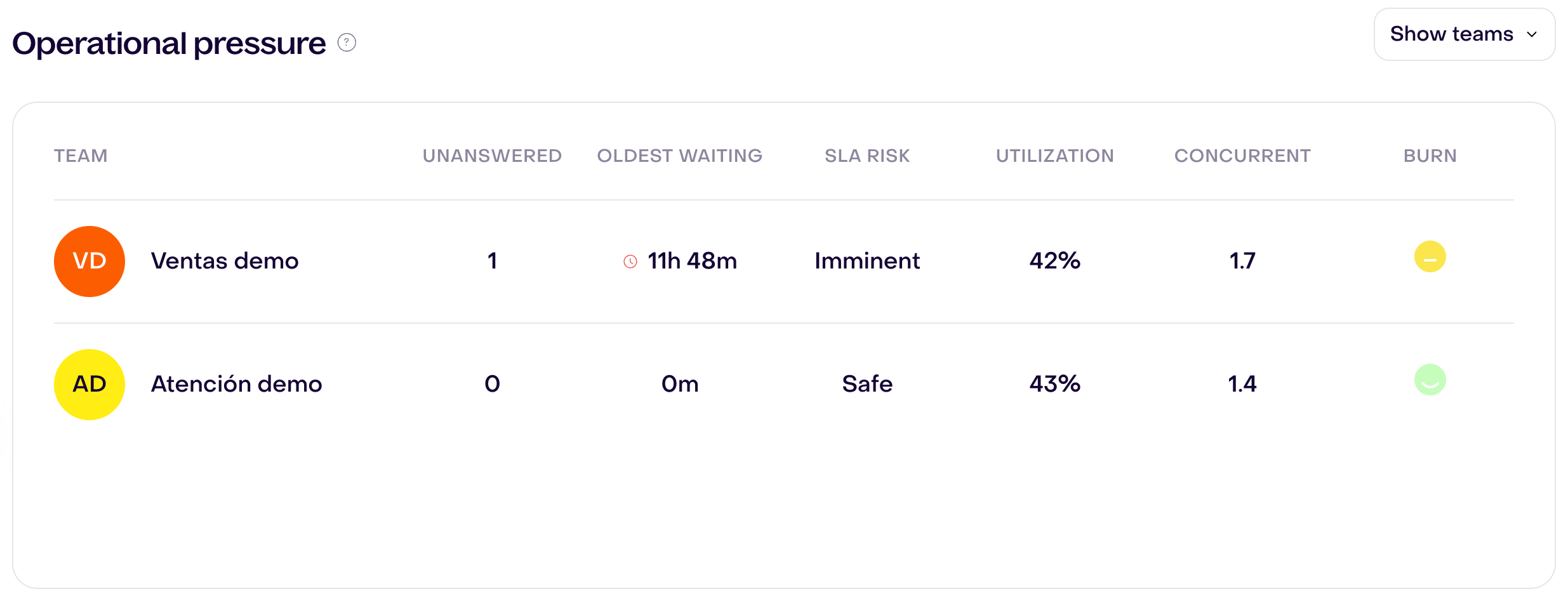
The Operational Pressure report shows information such as unanswered conversations, oldest wait, response risk, utilization, concurrency, and burn.
The response risk statuses are:
- Safe
- At risk
- Imminent
This helps supervisors detect when a team or teammate is accumulating conversations that could affect response times. Unanswered, Oldest waiting, and SLA risk inspect current unresolved obligations; Utilization and Concurrent use the selected period, and Burn blends both time bases. Changing the dates does not turn the current queue into a history for that period.
Report SLA risk uses progress between the stored start and deadline in wall-clock time: At risk from 70%, and Imminent when the complete window is consumed. Do not treat it as an exact copy of the conversation alert, whose risk threshold uses business hours.
The reused table is a historical fictional capture for September 11–24, 2026. Ventas demo shows 1 unanswered, 11 h 48 min oldest waiting, and Imminent in English (11 h 45 min in Spanish, captured earlier); Atención demo shows 0, 0 min, and Safe. Period Utilization and Concurrent are 42% / 1.7 and 43% / 1.4 respectively. Burn shows Watch and Normal. These are independent states at capture time, rather than results of the rule or hour forms in the other figures.
How to configure response rules
- Go to Settings.
- Select Response times in Settings navigation; it appears alongside Team as its own section.
- Confirm you are in the intended business.
- Open the Response rules tab.
- Edit the Default response policy, or create a channel-specific response rule.
- Set First response to new conversations.
- Set Subsequent replies.
- Save your changes.
To configure when time should count, use the Business hours tab in the same section. Managing these settings requires Owner, Administrator, or Manager permissions and an account with the relevant features.
The figure shows a new rule without saving: Technology is not selected and both fields are empty. The gray 60 is a placeholder, not a saved target or an effective initial value. Choose a technology and enter both targets before saving a real rule. No rule, conversation, or message was created for this guide. The save footer is omitted.

Plan requirements
Response rules require a Pro or Enterprise plan.
If the feature is not included, a user with Settings access can open Response times and see an upgrade option instead of controls for creating rules. This access screen does not prove that historical records or existing waits have been deleted or canceled.
Without Pro or Enterprise, response health indicators are hidden from conversations, teams, and teammates.
Best practices
Use the Default response policy as the normal company-wide expectation.
Create channel-specific rules when some channels need faster or slower response times. For example, you may want WhatsApp conversations answered faster than email-like channels.
Keep Business hours accurate so response times reflect when your team is actually available.
Review conversations, teams, teammates, and reports regularly to detect delays before they affect the customer experience.