
Use this guide after you have chosen the first playbook you want to launch.
A playbook should be enabled only after the required signals, channels, messages, knowledge, and handoff rules are ready. The exact configuration cards vary by playbook type and account, but the launch pattern is the same: configure the mission, test the experience, enable it, then review early results.
If you are still deciding what to launch, start with Choose your first playbook.
Before you start
Confirm the basics first:
- Your store, website, catalog, or data source is connected when the playbook depends on commerce activity.
- The customer signals the playbook needs are appearing on customer profiles.
- The channel the playbook will use is connected and ready.
- The audience has consent and is eligible for the channel.
- A teammate or team is ready to handle handoffs.
- You know which report or Inbox view you will use to review the first results.
If the playbook depends on product, order, cart, policy, or FAQ information, make sure that information is current before you enable the playbook.
Open the playbook
Go to Playbooks, click Explore playbooks, and choose the playbook you want to configure.
Use All to explore the catalog and In my plan to filter included options. A card may require a plan upgrade or a request; catalog presence does not establish editor access or a ready channel.
These screenshots show a fictional account and two catalog filters. No playbook was installed or enabled.


Some types allow one playbook per business. If a copy already exists, including an inactive copy, Hellotext opens its configuration instead of creating another.
Custom playbooks and custom agents may allow multiple versions. Give each version a clear name that explains its mission, audience, or channel.
Review the configuration cards
Each playbook shows the configuration cards that apply to that mission.
You may see cards such as:
- Incoming channels, for channels where customers can contact the playbook.
- Outgoing channels, for channels the playbook can use when sending messages.
- Agent prompt, for instructions that tell the AI agent what to do and how to respond.
- Intents, for customer intentions that should activate a custom agent.
- Uploads, for knowledge such as FAQs, policies, product notes, or documents the agent can use.
- Discounts, for eCommerce offer rules and maximum AI discount limits.
- Tone, for the voice used in AI-generated responses.
- Escalation, for the teammate or team that should take over when the agent needs help.
- Web search, for approved websites the agent can use when searching online.
- Webchat settings, for appearance, behavior, sequence, teaser, and handoff settings when the playbook is a webchat.
This example is a new Custom Agent, without saving or enabling it. The desktop view shows Intents, Agent prompt, Uploads, and Incoming channels; the mobile view focuses on the first two cards. These are configuration controls, not executed instructions, uploaded documents, or connected channels.

You do not need to change every card. Change only what affects the customer experience, the playbook’s permissions, or the team that will own exceptions.
Configure channels
Choose where the playbook can act.
For inbound playbooks, decide whether it should respond on all incoming channels or only selected channels such as WhatsApp, Webchat, Instagram DM, or SMS.
For outbound playbooks, confirm the outgoing channel, sender, WhatsApp account, or template requirements before enabling the playbook.
If a channel is not ready, do not enable a playbook that depends on it. Finish the channel setup first.
Configure the agent or route logic
For AI playbooks and custom agents, review:
- The prompt and business instructions.
- The intents that should activate the agent.
- Uploaded knowledge, FAQs, policies, and product information.
- Tone and brand voice.
- Escalation rules.
- Whether the agent can use web search or external actions.
For route-style playbooks, review:
- The trigger or signal that starts the route.
- Messages, waits, conditions, branches, and assignments.
- Stop conditions and frequency expectations.
- Links, coupons, product recommendations, and personalization.
Use the smallest setup that can prove the playbook works. It is easier to expand a focused playbook than to diagnose a broad one.
Test before enabling
Use the playbook preview or Playground when available. It is a simulation: a reply there does not establish a real profile’s eligibility, channel readiness, or receipt by a teammate.
A test may use AI, documents, or external tools. Use test data you control and review the effects before running it. Check eligibility, channel readiness, and receipt separately in the authorized live workflow.
This Playground belongs to the earlier fictional draft. It is empty: no question was entered and no AI reply was generated. On mobile, open the Playground tab to see the test area.

Test:
- A customer who should enter the playbook.
- A customer who should not enter the playbook.
- The main success path.
- A reply or question the playbook should answer.
- A case the playbook should escalate.
- Links, products, offers, and personalization.
- The Inbox handoff path and assignment target.
For AI playbooks, test several realistic messages. Confirm that the agent stays in scope, uses the right knowledge, and escalates when it should.
Save and enable
When the setup is ready, review its name and Enable this playbook. On mobile, the switch appears without that label.
In this editor, changing the switch submits the configuration: enabling is not a local change awaiting another Save click. On an existing playbook, Save changes appears when you edit; on a new one, enabling may save the first copy. Some types also require installation.
The screenshot shows an empty fictional draft with the switch off. The name is proposed for that new copy; it does not indicate a saved playbook or readiness for customers. The mobile interface itself hides the name.

The next views show Asistente de atención · Demo, an existing fictional playbook. Its active state was prepared temporarily in an isolated demonstration environment with jobs and deliveries disabled, then restored. The ON switch and Active label show configuration state; they do not establish eligibility, an agent reply, or a delivered message.

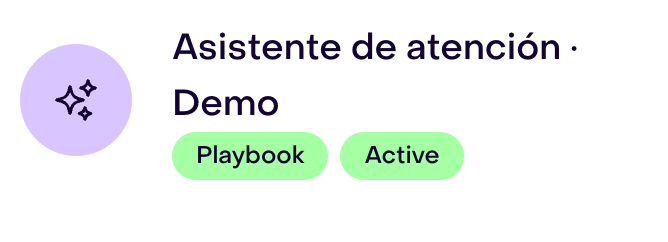
After a playbook is enabled, Hellotext can mark its workflow as active and customers who match the playbook conditions may begin entering it.
Enabled does not mean every matching signal will send immediately. Hellotext still checks customer eligibility, channel readiness, frequency, timing, and handoff rules before each send. For details, see How Hellotext decides whether a playbook can send.
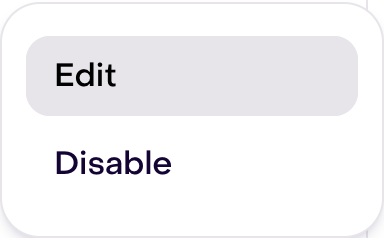
To stop new entries, open the playbook list and use Disable on the active playbook. Check its saved state afterward. Disabling does not guarantee cancellation of queued work, provider messages, or every process already running. If a change’s result is uncertain, verify its state before repeating it: a second toggle can reverse the first.
The same active playbook’s menu offers Disable. It was opened to show the option without selecting it.
The Inactive view shows the same fictional playbook’s original state, captured after restoring the active demonstration to its original inactive state. It is a saved copy separate from the new draft; these screenshots do not show a delivery or provider cancellation.

Watch the first activity
Do not launch and walk away.
During the first day, review:
- Whether the right customer profiles entered.
- Whether the expected messages were delivered.
- Whether replies reached the Inbox.
- Whether the agent answered within scope.
- Whether handoffs went to the right teammate or team.
- Whether links, products, discounts, and recommendations worked.
- Whether reporting started to show activity.
If the playbook touches revenue or support, keep the first audience narrow until the team has reviewed the first conversations.
Tune after launch
Change one thing at a time.
Common adjustments include:
- Narrowing the audience or trigger.
- Improving the prompt.
- Adding or updating knowledge documents.
- Changing the channel selection.
- Updating tone or offer strategy.
- Adjusting handoff rules.
- Fixing tracking, links, templates, or product data.
After each change, give the playbook enough activity before comparing results again.
For a safer editing process, keep reading: How to customize a playbook safely.
Related guides
- Choose your first playbook
- How to customize a playbook safely
- How Hellotext decides whether a playbook can send
- Troubleshoot a playbook that did not trigger or send
- Playbook library by mission
- Webchat Widget playbook
- Instant Answers playbook
- Review Builder playbook
- CSAT Pulse playbook
- NPS Pulse playbook
- Return & Exchange Helper playbook
- Order Cancellation Assistant playbook
- Custom Agent playbook
- Verify your data and signals after setup
- How to write a great agent prompt
- AI handoff to Inbox
- Playbook reporting
- Troubleshoot missing signals or activity