
Use this guide when a capture playbook is missing from the product, does not load for a customer, does not register submitted information, or does not start its configured follow-up.
Find capture tools under Playbooks > Explore playbooks, in the Capture group. Website Popup, Website Form, Webchat Widget, QR codes, shareable links, Subscriber Booster and Property Collector have different flows. Checkout opt-in is configured through the relevant eCommerce integration; it has no separate card in that group.
Identify where it stopped
Before changing settings, identify the last stage you can verify. To reproduce the flow, use your own details or an authorized internal profile and record what you submitted and when.
| Stage | What you observe |
|---|---|
| Availability | The playbook is missing from Explore playbooks, shown as On request, or requires another plan. |
| Loading | The capture exists but does not appear on the expected website, checkout or channel. |
| Interaction | The capture appears but does not open, advance or submit. |
| Verification | The submission was received, but an identity still needs verification or processing. |
| Customer profile | You cannot find the data on the expected profile or identifier. |
| Next action | The profile was updated, but a coupon was not delivered, a journey did not start or a message was not sent. |
Keep evidence for each stage separately. A preview, network response or updated profile alone does not prove consent or delivery. If a network error left the result uncertain, inspect existing records before submitting again: another attempt can create another interaction.
If the playbook is not available
- Open Playbooks and click Explore playbooks.
- Find the Capture group. If you filter for tools included in your plan, also check the full catalog.
- Confirm availability for your business, plan and permissions.
- If the tool is On request or disabled, check its stated reason and contact your Hellotext team when needed.
These cards identify Popup and Form. They show a catalog example, not an installation or enabled capture; narrow screens show the Form card.
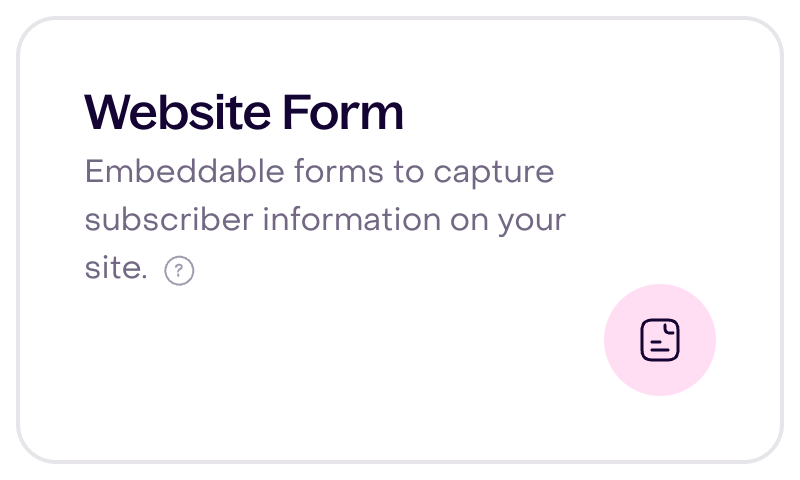
Check the specific tool’s status: saving a draft does not establish publication. A popup must be published and visible; Webchat must be enabled and installed. For a form, distinguish its hosted link from the snippet placed on your website.
If a popup or Webchat does not appear
Check these points in order:
- Confirm publication or enablement and that the changes you expect to see were saved.
- Confirm that the supported integration, plugin or Hellotext.js loads on the live page.
- For a manual installation, compare the website code with the current code generated by Hellotext, including the business and widget identifiers. SDK initialization is asynchronous; loading the JavaScript file does not establish widget readiness.
- Check the exact domain, URL and installation container.
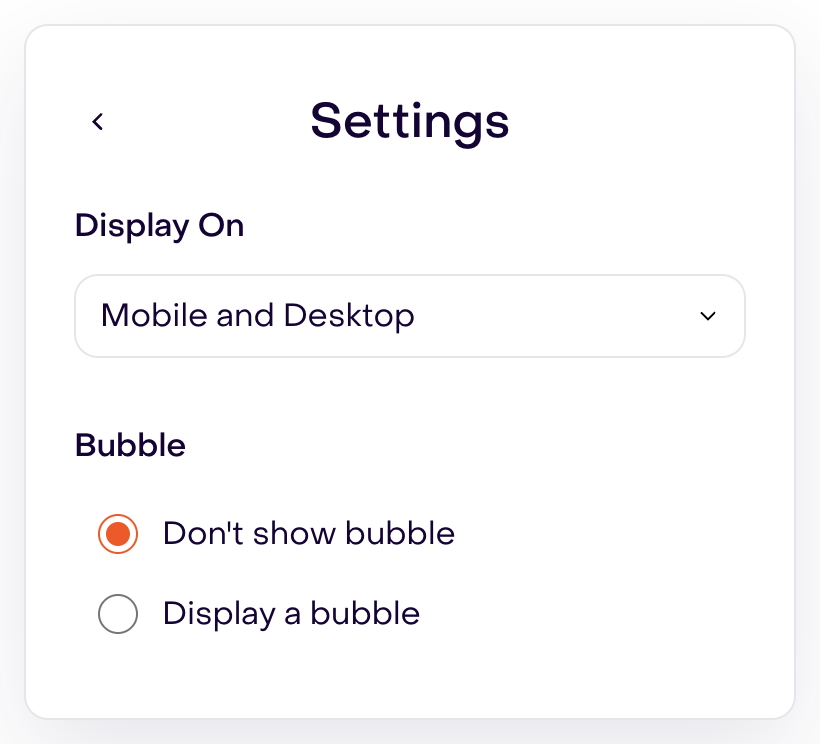
- For Popup, check Settings > Display on and the bubble option. That panel has no delay selector.
- For Webchat, check opening on click or page load, the delay, and first-visit and session limits.
- Compare a private window and a real phone to distinguish prior browser state from an installation problem.
- Check whether website styles, consent banners or other elements are hiding the capture.
This fictional popup remains hidden and draft. Mobile and Desktop and Don’t show bubble identify the controls to inspect; they do not prove storefront visibility.
The separate Webchat example selects automatic opening after five seconds and both limits, without saving or enabling it. The narrow view focuses on the two limits. First visit only is remembered across visits; Once per session uses browser session state. These limits affect automatic opening; they do not establish that a manual click will fail.

For a Subscriber Booster teaser, Webchat Widget and Subscriber Booster must be enabled, and the Booster’s teaser option must allow it. Session and customer state also matter: a consumed invitation or an already subscribed customer can follow another flow. Webchat’s configured teaser and the Booster invitation are distinct controls; enablement alone does not guarantee an invitation will appear.
If a form does not load
First open the hosted link for the same form without submitting it.
- If it loads there, compare the snippet identifier, container and website styles or scripts where it is embedded.
- If the hosted link also fails, check that the link and form belong to the correct business and inspect its configuration. Required fields explain submission errors; their presence does not establish a loading failure.
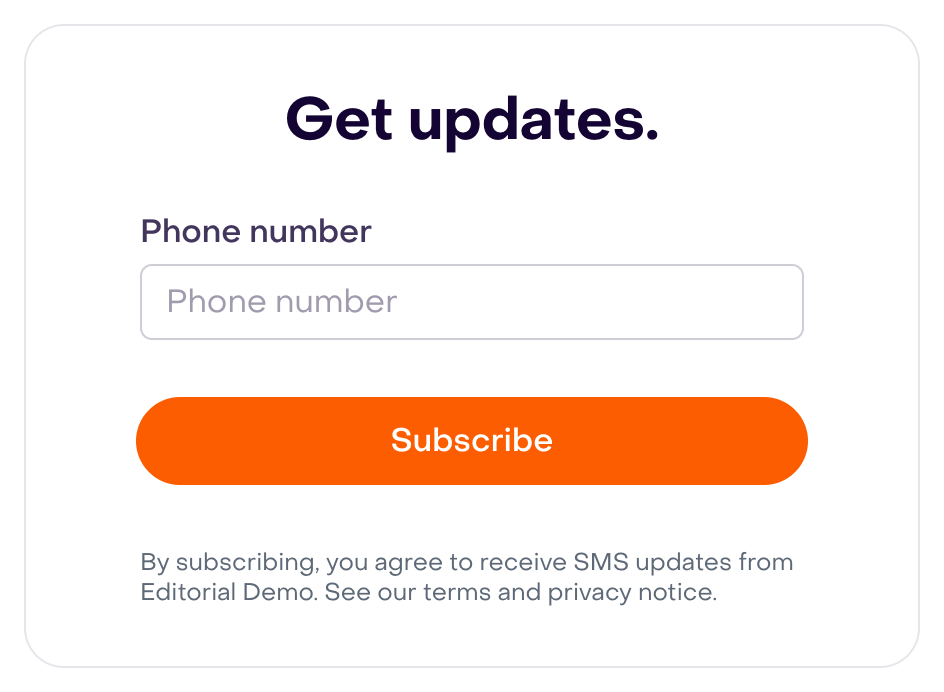
This fictional form is a draft preview with no submissions. Compare its heading, Phone number field, button and SMS consent notice with what should load. It does not document publication, verification or subscription.
For an embedded form, confirm that the current snippet is present and Hellotext.js initialized. In the published SDK, forms:collected means the collection obtained definitions; it does not prove mounting, submission or verification. form:completed fires after the browser accepts a submission and can also fire when restoring locally stored completion. It does not confirm phone or email verification or the later profile update. Check those stages separately in Hellotext.
If a QR code or link does not register the subscription
Inspect the final version on a phone and confirm its channel, number, message and generated reference. A default-number selection in the editor is insufficient: check the destination of the actual QR code or link.
In this fictional QR chooser, SMS is selected and WhatsApp is unavailable for the account. The form was not saved: it does not show a connected channel, scan or subscription.

Opening a QR code or link does not complete subscription. The customer must send the prefilled SMS or WhatsApp message with its reference intact. Hellotext must receive and process that message and recognize the corresponding capture. A message without its reference may arrive as a conversation without being attributed to that capture.
If the message does not leave the phone or reach Hellotext, inspect the channel and number. If it arrived, compare its text and reference with the final version before creating another QR code or sending again. Recorded subscription and configured follow-up are separate steps.
If checkout opt-in does not register the customer
Confirm that:
- the eCommerce integration is connected and syncing the orders and profiles you expect;
- the consent option is visible in the published checkout;
- the customer selected the relevant option;
- the platform stored that consent and the integration received it; and
- you are checking the correct state and channel in Hellotext.
Creating a profile from a purchase does not establish marketing permission. Profile import, subscription state and consent for a specific destination can follow different rules depending on the integration. Compare source data with Hellotext; do not infer SMS consent from an email option or the reverse.
If data is missing from the customer profile
- First look for the existing submission and profile using the identifier and time you recorded. Repeat the flow with your own or authorized internal details after clarifying an uncertain result.
- Inspect required fields and returned errors; a visual success button does not replace that check.
- If the flow asks for phone or email verification, distinguish receipt, verification and processing. A provisional profile or unverified data can exist before that flow finishes.
- Search using every submitted identifier. Hellotext may update an existing profile or merge matches after verification; do not look only for a new profile.
- Check that custom properties still exist and match the configured fields.
- Confirm the consent requested, profile state and destination you are inspecting.
Camila Torres is a separate example: Unconfirmed, with a fictional email and no phone number. She is not the result of the previous form; her properties do not establish subscription or an available SMS destination. Narrow screens use a focused crop of the same desktop panel.

The browser can remember a completed form. A private window helps compare local state, but does not erase profiles or interactions already in Hellotext. For Popup, receiving fields alone does not establish completion of verification or journey entry: inspect that capture’s steps and assignments.
If the next action failed
Received capture, required verification, consent and follow-up are separate stages.
- If the profile was updated but a coupon or message was not delivered, review Why a message did not send.
- If a journey should have started, confirm it is assigned, enabled and that its event and filters include this capture. Inspect its activity; a capture without an assigned journey does not guarantee a welcome message.
- If a Webchat conversation should have opened, confirm message receipt in Inbox and inspect assignment, team and capacity. Seeing the widget does not establish a received or assigned conversation.
- If Subscriber Booster did not participate, inspect enablement, the selected channel, the previous invitation and the customer’s response. Webchat or WhatsApp origin alone does not guarantee AI participation, a coupon or delivery.
First confirm which data and consent changed, then inspect follow-up. Keep evidence from the first attempt before sending again or changing settings.
What to include when asking for help
Include:
- business and capture name;
- capture type and identifier;
- URL, domain or placement tested;
- device and browser;
- approximate date and time with time zone;
- last verified stage and first failed stage;
- internal test profile identifier;
- a screenshot or short recording; and
- visible error, response code and failed request, if you have technical access.
Do not include verification codes, tokens, passwords or real payment information. Also inspect request headers and bodies before sharing them.