
Teams organize the people who can receive conversations for an operational purpose such as Sales, Support, or Returns. Inbox capacity helps Hellotext distribute active work among the eligible members of the target team.
Roles remain separate: a role controls what a teammate can see and do, while team membership and capacity control conversation routing.
Create a team
Create teams around real ownership boundaries. A team should describe who can take responsibility for a type of conversation, not only who reports to the same manager.
- Open Settings and go to Your Team.
- Open the Teams tab.
- Select New team.
- Enter a clear name such as Sales, Support, or Returns.
- Add the teammates who can handle conversations for that team.
- Set Max concurrent conversations.
- Set Active teammate handling hours per day.
- Select Save to persist the name, members, and both capacity values.
Creating or editing teams requires Owner, Administrator, or Manager permission and availability of the feature in the plan. Editing a member’s capacity has its own permissions: managing teams does not automatically grant access to every member form.
The figure shows Soporte demo entered in a new unsaved form, with 5 conversations and 6 hours as initial values. On desktop, Teammates is empty; in the small view, Lucía is only search text, with no teammate selected or added. Search by name or email. It shows the complete heading and fields, with the saving footer omitted. No team was created and no work was assigned.

A teammate can belong to more than one team. Hellotext uses the team selected by the playbook, journey, or routing rule as the context for that assignment.
Understand the two team capacity settings
Max concurrent conversations
This is the maximum number of active conversations each eligible teammate can handle at the same time through automatic team routing.
Capacity is based on assigned conversations that still need the teammate’s attention within the business. It is not a count of every historical conversation or every conversation that appears in the Inbox. Reading a conversation does not mean it has been handled: team attention and personal reading state are separate.
For example, if someone owns 12 conversations but only 3 need attention, with a limit of 5 for the target team, those 3 consume routing capacity. This is a conceptual example, not a result shown in the figures.
Active teammate handling hours per day
This is the time each teammate is expected to spend actively managing Inbox conversations, excluding breaks and meetings.
Hellotext uses this value for workload and capacity tracking. It is not a fixed daily cutoff that automatically blocks every new assignment after that number of hours.
Start with realistic values and adjust them after observing unassigned work, response health, and the team’s actual workload.
Choose how each teammate handles the Inbox
When inviting a teammate or editing an existing member, choose one of these Inbox capacity modes:
- Does not handle Inbox messages: prevents the person from receiving or replying to Inbox conversations and removes them from team routing.
- Same as the team: uses the capacity limits of the team targeted by the conversation.
- Different from the team: uses custom concurrent-conversation and daily-handling values for that person.
Use a custom capacity when someone’s schedule or responsibilities differ consistently from the rest of the team. Exclude people who need access to Hellotext for management or reporting but should not receive Inbox work.
These settings apply to Inbox handling and workload tracking. They do not change the teammate’s role or add team memberships.
The figure reuses the real selector for fictional teammate Lucía Méndez, who already has Different from the team selected. Her mode was neither changed nor saved. This state is independent of the new Soporte demo form.

Next in the selector saves the mode before opening custom fields. Save and Close also saves; in custom mode it can fill initial values and exit. Do not use these buttons solely to inspect a setting without modifying it.
In the custom form, set concurrent conversations to a positive integer and daily hours to whole hours from 1 to 24. The figure shows Lucía’s existing 4 conversations and 6 hours, neither changed nor saved. The entire navigation footer is omitted. The custom limit applies when that member is eligible for the target team; it does not create availability or business hours.

Understand automatic assignment to a team
A playbook escalation, a journey Assignment step, or another routing rule can select a team as the destination for a conversation.
When a conversation targets a team, Hellotext:
- Looks for members of that team who are allowed to handle Inbox messages.
- Considers recent presence, conversation capacity, and current active workload. When some members have been present recently, it prioritizes that pool; absent members are not overflow capacity when the recent pool is full.
- Assigns the conversation to an eligible teammate.
If all eligible members are at capacity, the conversation can remain Unassigned while preserving the team as its destination. When capacity becomes available, Hellotext can assign waiting conversations to an eligible member.
Waiting conversations are reviewed by when they started waiting for that team; later customer activity does not move them ahead. Clearing attention or changing capacity can queue a review in the background: there is no guaranteed assignment time. This queue is separate from waiting for any online person in the business.
An unassigned conversation with a target team should not be treated as unrestricted work for every teammate. Automatic pickup on reply requires membership in the pending team and can happen even when that member is at capacity; manual reassignment has its own permissions. A routing limit does not universally block every human action.
A team with no eligible members is different from a valid but full team: do not assume it creates a capacity queue or falls back to another team. Before enabling a playbook or journey, confirm members’ team membership, current access, and handling mode, and check the handoff target in your flow.
Keep reading: Assign conversations.
Choose who handles reopened conversations
The Options tab under Your Team controls what happens when a conversation reopens. This setting applies to all conversations across the business.
- Fastest response: looks for an online person with capacity under the general protocol. Without one it can use an eligible AI path; without an active path or available person it can leave work waiting unassigned.
- Keep same teammate: keeps the previous assignee while they retain valid business access. It does not require the same presence or capacity as a new team selection; without a valid assignee it falls back to Fastest response.
- AI-first: first checks active journeys that can handle reopening, then eligible playbooks. It does not guarantee an AI reply: without an active path it can fall back to an online person or leave the conversation unassigned.
- Unassigned queue: leaves the conversation open for a teammate to pick up manually.
The figure shows all four options with Fastest response already selected in the fictional business. No other option was selected and no conversation was reopened. Selecting a card saves the option automatically: this screen has no final Save button.

This business-wide ownership protocol is different from a team target. The protocol decides how reopened conversations enter the workflow; a playbook, journey, or routing rule decides which team should receive a specific handoff.
Keep reading: Conversation lifecycle in Inbox.
Monitor and adjust capacity
Review capacity when you see:
- Conversations waiting unassigned for a target team.
- One team receiving significantly more active work than another.
- Response times getting worse even though teammates are available.
- Teammates whose schedules or responsibilities no longer match the team defaults.
Change capacity gradually and review the effect on the Inbox. A higher limit may reduce the waiting queue, but it can also give each teammate more simultaneous work than they can answer well.
Use response-time reporting to evaluate the result instead of treating capacity as a service-level promise.
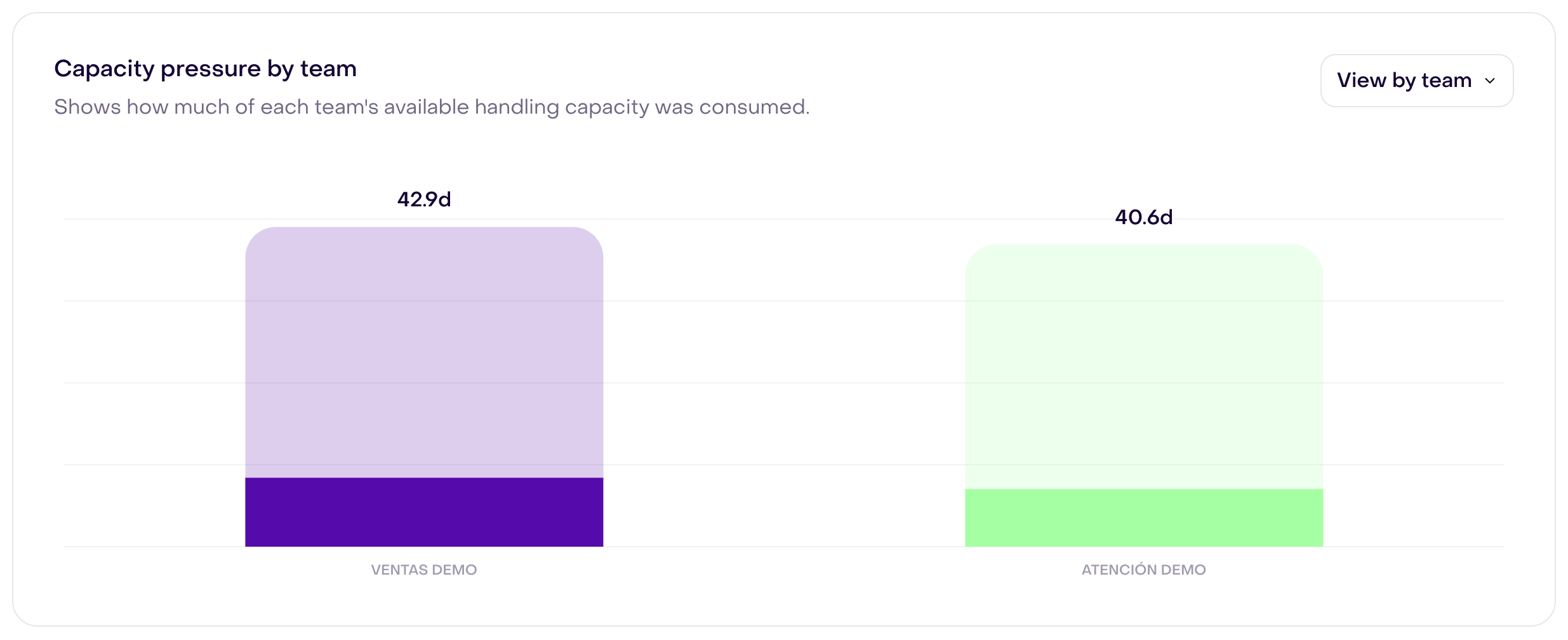
The figure reuses Capacity pressure by team from the fictional report for September 11–24, 2026. Bars compare consumed handling time and available capacity for the selected period; Ventas demo shows 42.9d and Atención demo, 40.6d of available capacity. These are aggregate durations, not conversations, business-hour schedules, or a current queue. Fictional names remain the same in both interfaces. Labels are compact on mobile; the values and period are also written here. This report is independent of the guide’s forms and does not prove the effect of a capacity change.
Keep reading: Response times and response rules.
Change or remove a team safely
Before removing a teammate from a team or deleting the team:
- Check playbooks, journeys, and routing rules that use it as a destination.
- Choose a replacement team where necessary.
- Review waiting and assigned conversations in the Inbox.
- Confirm that the replacement team has eligible members and enough capacity.
Deleting a team clears the target and waiting timestamp from pending conversations; it also removes its members and certain Assignment references. It does not automatically choose a replacement team or change every existing assignee. Review flow references and the Unassigned queue after the change so no customer work is left without a clear owner. No team was deleted to obtain these figures.