
Browser notifications help teammates notice new customer work even when they are not looking at the Inbox.
Permission and push subscriptions are configured per browser and device. Enabling them on one computer does not automatically enable them on another computer, browser profile, or phone. Browser permission, a registered subscription, and the alert you eventually see are separate states.
Hellotext prioritizes one subscription on your account for delivery. Opening or synchronizing another browser can change that priority; other subscriptions that have not been disabled may provide a fallback when no active subscription is available or it has expired. Configuring several devices does not guarantee simultaneous alerts on all of them.
What can generate a notification?
Hellotext can notify a teammate when:
- A customer sends a new message in a conversation assigned to that teammate.
- Another teammate or an AI agent assigns a conversation to them.
- Someone mentions them in an internal note.
- A customer sends a new message in an unassigned conversation.
For an assigned conversation, the incoming-message notification goes to the assigned teammate.
On channels other than Webchat, an incoming message without an owner can generate notifications for business users. Each alert still depends on their subscription and notification limits. For Webchat, Hellotext looks for the owner of the customer’s private conversation; without one, it does not generate that broad alert. Assigning conversations quickly helps reduce broad alerts and gives the next reply a clear owner.
Customer replies classified as automatic and customer opt-out commands do not generate the ordinary incoming-message notification. Assignment by a person or an AI agent can notify the recipient when they are a different person; a silent system assignment does not imply that alert.
Notifications are processed in the background and can group several messages, mentions, or assignments. Frequency limits depend on your account’s recent activity; there is no guaranteed alert for each event or fixed delivery time. Reading a message can remove its pending alert.
Enable notifications on a device
- Open your avatar menu in Hellotext.
- Select Account Settings.
- Find Push notifications.
- Select Enable.
- When the browser asks for permission, select Allow.
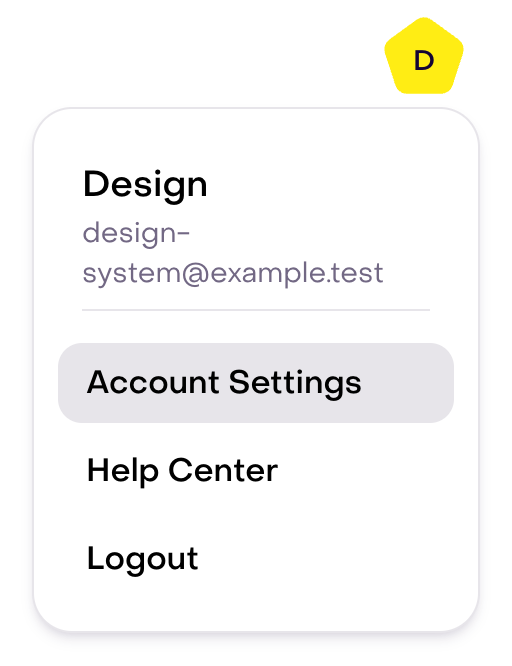
This fictional account menu shows Account Settings. It was opened from the account page without selecting any action.
This fictional account’s card says notifications are not enabled yet. Permission is still pending and there is no push subscription. The figure helps you recognize Enable; it does not show authorization, a created subscription, or a received alert.

After you grant permission, Hellotext attempts to create the browser subscription and register it with your account. Allowing notifications alone does not complete all those steps. Reload Account Settings and review the card: when the page loads, the enabled state depends on granted permission and an existing local subscription. The card’s message does not prove that server registration or delivery succeeded.
Repeat configuration in each browser and device you need, and check the ones your team relies on again. Delivery priority can change when another device synchronizes.
What happens when a notification arrives?
The browser or operating system displays the notification according to its own settings.
When an alert includes a conversation link, select it to open or focus that conversation in Hellotext. A grouped alert can have a different format and omit that individual link. If a Hellotext window is already focused on the relevant conversation, the alert can be omitted for that window; other tabs or windows can change the outcome.
An alert can contain the customer’s name and message or note text. Review lock-screen privacy and shared-device settings.
When Hellotext is open, it can also play the Inbox notification sound. The browser may suppress sound until you have interacted with the page, and the operating system’s volume or focus settings still apply.
Hellotext does not currently provide a separate sound switch. Notification sound depends on the browser subscription, browser audio rules, device volume, and operating-system notification settings.
Disable notifications on one device
- Open your avatar menu.
- Select Account Settings.
- Find Push notifications.
- Select Disable.
Hellotext attempts to mark the current browser’s registered subscription as disabled and cancel it in that browser. Site permission can remain Allow: disabling the subscription does not revoke permission.
This action does not delete subscriptions or change permissions in other browsers. However, it can also change which subscription the server prioritizes and which remain as fallbacks. Check other devices you still use; do not assume guaranteed reception or an independent delivery state on every device.
If the browser permission was blocked
After you select Block or deny permission, the browser may stop Hellotext from asking again.
Open the site permissions for Hellotext in the browser, change Notifications to Allow, and reload Hellotext. Then return to Account Settings and enable push notifications again.
The permission prompt and its location depend on the browser. MDN distinguishes granted, denied, and default permission: pending permission does not allow notifications to be displayed. Hellotext also needs notification, push, and service-worker support in a secure context. If your browser does not support them, use a supported, current browser or another device.
With permission already granted, reloading Hellotext can automatically attempt to create or synchronize the subscription if you have not disabled it in Hellotext. Reloading does not prove the server received the registration.
If notifications are enabled but do not appear
Check:
- Notifications are enabled in Hellotext on this exact browser and device.
- The browser allows notifications for Hellotext.
- The operating system allows notifications from the browser.
- Focus, Do Not Disturb, or battery-saving modes are not suppressing alerts.
- You are signed in to the correct Hellotext account and business.
- The alert belongs to you through assignment, mention, or incoming-message channel rules; Webchat does not broadcast an ownerless message to the whole business.
- The notification was not grouped, limited by recent activity, or removed after the message was read.
- The browser profile has not cleared site data or removed the push subscription.
If permission is allowed but the subscription no longer appears active, return to Account Settings and review the card before configuring it again. A subscription lookup can return no subscription while permission remains granted. If you use Disable and Enable to rebuild it, check the local state and other devices afterward. If the problem persists, contact support with the browser, device, and time of the issue; avoid including private customer content in a screenshot.
If the notification appears without sound
Check:
- The device and browser are not muted.
- The browser tab has been used at least once so it can play audio.
- The operating system allows sound for browser notifications.
- Focus or Do Not Disturb is not silencing notifications.
The visual notification and the sound are controlled by several browser and operating-system rules. Receiving one does not guarantee that the other is allowed.
Keep notification ownership useful
Notifications work best when conversation ownership is current.
- Assign active customer work to the teammate responsible for the next reply.
- Use mentions when you need context or a decision without transferring ownership.
- Review unassigned conversations so new messages do not remain broad team alerts.
- Close completed work and use reminders for conversations that should return later.
Use Filter and search conversations in Inbox to find the corresponding queue after opening Hellotext.