
Roles control what each teammate can see and do in Hellotext. Choose the role that matches the person’s responsibilities and reserve sensitive business settings for the people who need them.
A role does not decide which conversations a person receives or how much Inbox work they can handle. Team membership and Inbox capacity control that separately.
Compare the roles
The selector shows Agent, Manager, and Administrator. The figure is the real form for fictional teammate Lucía Méndez, who already has the Agent role: her role was neither changed nor saved. It shows the complete heading and three choices; saving controls are explained later. Owner is managed separately.

Agent
Agents focus on daily customer work.
- Manage Inbox conversations.
- View and update customer profiles while handling conversations.
- Work with the assignments and teams available to them.
Use this role for people focused on replying to customers. Do not treat it as an exhaustive list of blocked areas: some playbooks admit Agent access according to the available configuration, and certain reports depend on the plan. Check the specific tool before promising or ruling out access.
Manager
Managers combine customer work with operational and marketing responsibilities.
- Do everything an Agent can do.
- Manage campaigns and reports.
- Manage captures, playbooks, journeys, and automations.
- Work with audiences and customer segmentation.
- Create teams and invite Agents.
Use this role for team leads, marketing operators, and people responsible for workflows. It can also grant access to the integrations section and team options available to the business; authorization for each connection depends on its own flow. Managers cannot change existing roles or manage billing or API credentials.
Administrator
Administrators manage most of the business configuration.
- Do everything a Manager can do.
- Manage channels, integrations, billing, and API credentials.
- Manage teams, Inbox capacity, and non-owner roles.
- Invite Agents, Managers, and Administrators.
Use this role for trusted operators who maintain the Hellotext account. Administrators cannot transfer ownership or delete the business.
Owner
The Owner has the highest level of business access.
- Has full access to the business.
- Can transfer ownership to another teammate.
- Can delete the business.
Owner is absent from the normal role and invitation selectors. Use the separate ownership transfer process to change this responsibility. Acceptance grants the recipient Owner without automatically revoking the requester’s role: check both accounts’ access. Coordinate with Hellotext support if you need an exclusive handover. Owner rows do not offer the ordinary menu for editing or removing a member.
Keep reading: Transfer business ownership.
Choose a role by responsibility
Use the least privileged role that still lets the person complete their work.
- Choose Agent for frontline Inbox work.
- Choose Manager for people who also operate campaigns, playbooks, journeys, captures, audiences, or teams.
- Choose Administrator for people who maintain channels, integrations, billing, credentials, roles, and capacity.
- Keep Owner for the person accountable for the business and its ownership.
Visible tools can also depend on the plan, connected products, and each tool’s configuration. A role does not add a feature unavailable to the business. Check the selected business, verified email, and whether the plan permits members and the operation you need.
Invite a teammate
Owners, Administrators, and Managers can start an invitation when the business permits members. In a Manager’s form, Agent is the selectable option; an Owner or Administrator can also select Manager or Administrator.
- Open Settings and go to Your Team.
- Select Invite team member.
- Enter the person’s email address.
- Choose their role.
- Add them to one or more teams when they should receive team-routed conversations.
- Choose how they should handle Inbox conversations and, when needed, define custom capacity.
- Review the recipient, role, teams, and capacity before finishing the flow and sending the invitation.
The teams step appears when that feature is available for the business.
Next in the first step already saves an email draft; persistence does not wait for final sending. Save and Close in later steps keeps the draft without sending it. Final sending creates a pending invitation and queues email: access starts after acceptance by the recipient’s account within the stated deadline. An entered email, draft, or pending invitation is not completed onboarding.
The figure reuses the email field with operations@example.test. It is fictional text entered without continuing or saving: no invitation was created or sent.

Team membership and capacity are part of the invitation because they affect Inbox operations, but they do not change the person’s role.
Change an existing role
Through the ordinary menu, an Owner can edit other non-owner members. An Administrator can edit another Administrator, Manager, or Agent, but cannot edit the Owner or their own role. Managers cannot change existing roles. These operations also require the business to permit members.
- Open Settings and go to Your Team.
- Find the teammate and open Settings for that member.
- Choose the new role. Save and Close saves it and returns to the list; Next also saves it before opening the capacity step.
The figure reuses the real menu for fictional teammate Lucía Méndez. Settings opens the selector shown at the start of this guide; Transfer ownership and Remove are separate actions. Ownership was not transferred, the member was not removed, and her role was not changed.
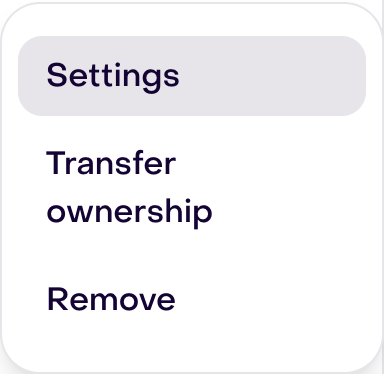
Changing a role does not automatically change team membership or Inbox capacity. Review all three when a person’s responsibilities change.
Understand roles, teams, and Inbox capacity
These settings solve different problems:
- Role: what a teammate can see and do.
- Team: which operational group can receive a routed conversation.
- Inbox capacity: whether a teammate handles Inbox work and how much active work automatic team routing can give them.
For example, two people can both be Managers but belong to different teams or use different capacity modes.
The capacity form offers Does not handle Inbox messages, Same as the team, and Different from the team. The figure shows Lucía’s existing Different from the team setting, neither modified nor saved. This is separate from the role selector and invitation draft; it does not demonstrate received work or assignment.

Routing capacity uses active work needing attention, rather than every historically assigned conversation. Presence and team membership are evaluated separately; a capacity limit does not guarantee response time. This screen requires its own saving action and does not change the role.
Keep reading: Teams and Inbox capacity.
Remove access safely
Removing someone else requires Owner or Administrator access; an Administrator cannot remove the Owner. A non-owner member can also leave their own access. Check the role and selected business before opening the confirmation.
Before removing someone from the business:
- Review conversations assigned to that person.
- Update playbooks, journeys, or routing rules that refer to them directly.
- Confirm that the remaining teams have eligible members and enough capacity.
- Remove the teammate, then review the Inbox for redistributed or unassigned work.
Cleanup after access removal runs in the background. It redistributes the member’s open assigned conversations among remaining current business members, round robin in Agent, Manager, Administrator, then Owner order. That process does not use the same team, presence, and capacity selection as automatic routing: check the new assignee and workload. Do not assume instant redistribution or a guaranteed load limit.
Closed or snoozed conversations lose that owner while keeping their state. Team memberships and certain Assignment references are also cleaned up; this does not replace reviewing every playbook, journey, or integration mentioning the person. No member was removed to obtain this guide’s figures.