
Custom properties and events let Hellotext understand information that is specific to your business. Properties describe what is currently true about a customer, while events record something that happened at a particular time.
Use them to improve segmentation, personalization, playbook decisions, journey triggers, and reporting without forcing business-specific data into a generic field.
Properties and events are different
| Use a property when | Use an event when |
|---|---|
| The value describes the customer’s current state. | You need to record that an action happened. |
| You expect the value to be updated or replaced. | The time and sequence of occurrences matter. |
| Example: loyalty tier, preferred category, account manager, or membership expiration. | Example: appointment completed, quote requested, class attended, or trial started. |
An event can also reference an associated object. For example, an order.placed event can point to the order that was placed. The event is the occurrence; the object contains the structured details.
Create a custom property
- Go to Audience and open a customer profile.
- In the profile properties, select Add more fields.
- Choose the type that matches the value, such as text, long text, number, checkbox, date, money, URL, or tags.
- Give the property a clear name and enter the value for that customer.
- Save the field value and confirm that it appears on the profile.
The selector shows common field types first. Scroll within the menu to see the others.
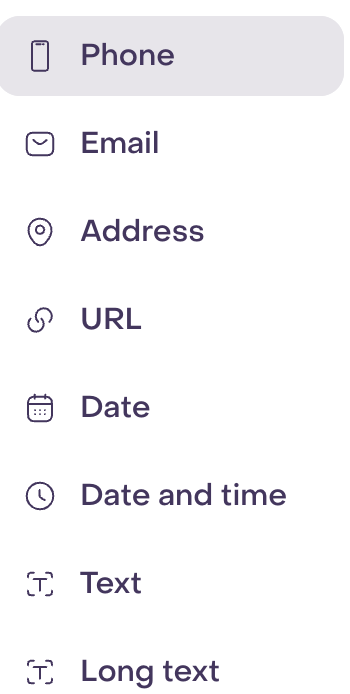
Phone and email work differently from business-wide custom properties:
- Adding a phone number or email address adds that identifier only to the customer profile you are editing. The same applies to another profile-specific address when it is available in the selector.
- Adding another custom property type creates its definition for the business, so the field becomes available across customer profiles and in compatible forms, imports, segments, personalization selectors, and playbooks.
In both cases, the value you enter belongs only to the customer profile you are editing. Creating a business-wide property does not copy that value to every profile.
Available property types can depend on the field and product context. Choose from the types Hellotext displays instead of converting every value to text.
Name properties clearly
Use a name that identifies one stable business concept, such as Loyalty tier or Preferred store.
- Use distinct names when several properties have the same type.
- Do not begin a property name with a number or include braces.
- Keep the same name and meaning across imports, captures, integrations, and internal processes.
- Avoid creating a second property for data that already has a reliable field.
To rename a property, click its name on the customer profile and edit the label. Press Enter or click outside the field to save it.
Renaming or removing a business-wide property can affect segments, capture fields, personalization tags, and automation that depend on it. Review those uses before changing the definition. Removing the property definition removes it from every profile, while removing one profile’s value affects only that profile.
Use a property as a unique identifier
Compatible properties can be marked as Unique. This means the same value cannot be assigned to more than one customer profile, allowing Hellotext to use the property to identify and deduplicate customers.
Phone numbers and email addresses are common unique identifiers. You can also create a text property such as National ID and mark it as unique when every customer should have a different value.
To change this setting:
- Click the property name on a customer profile.
- Open the options menu beside the name.
- Select Set as Unique.
Hellotext only shows this option for compatible property types. If multiple profiles already share a value, resolve those duplicates before enabling uniqueness. Do not mark a property as unique unless the value is genuinely exclusive to one customer.
Reorder properties
Drag a property by its reorder handle to change its position.
The order of a business-wide property is shared across customer profiles. Reordering profile-specific identifiers, such as multiple phone numbers or email addresses, changes their order only on that profile and can help keep the preferred value first.
Add and update property values
Property values can come from several sources:
- A team member editing a customer profile.
- A file import or connected integration.
- A capture playbook, form, or Property Collector.
- A step in a journey.
- Hellotext.js, the API, or another custom integration.
Decide which source should be authoritative. If an integration keeps a value synchronized, manual changes may later be replaced by the source. When importing data, use the overwrite option only when the file should become the source of truth.
Understand actions and events
An action defines the kind of activity Hellotext can track, such as order.placed or appointment.completed.
An event is one occurrence of that action for a customer. It can include when it happened, an associated object, a URL, metadata, and monetary values when applicable.
Hellotext includes built-in actions for common eCommerce, messaging, capture, subscription, and conversation activity. Create a custom action when your business needs to track something that is not already represented.
Create a custom action
If your plan and permissions support custom actions:
- Go to Settings, then Actions.
- Open the Custom tab and select Create new action.
- Enter a readable name for the interface.
- Enter a tracking name, such as
appointment.completed. - Choose whether the action should be marked as a conversion or as important.
- Save the action.
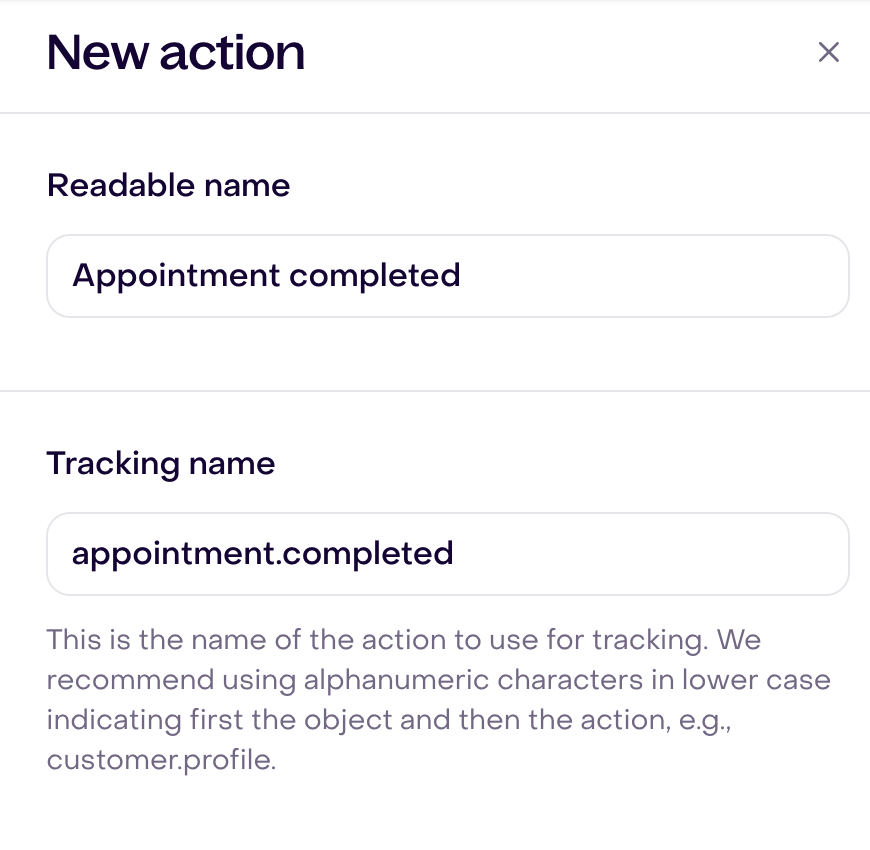
Marking an action as a conversion lets reports treat its events as conversions. Marking it as important makes new occurrences require attention and can move the related conversation to the top of Inbox.
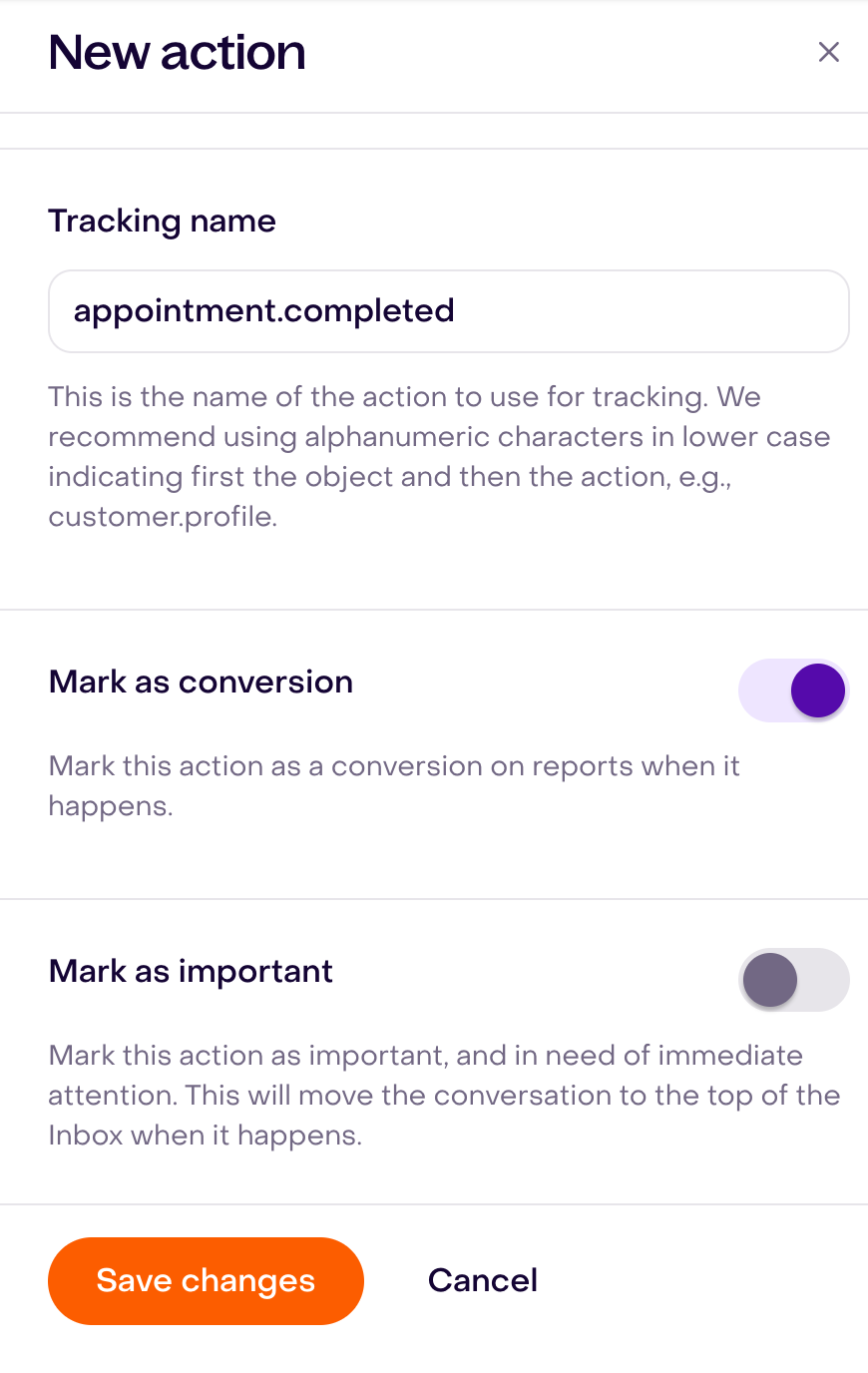
Treat the tracking name as a contract with your site, backend, and integrations. If you change it, update every source that sends the event. Deleting a custom action also deletes its associated events and cannot be undone.
Read Custom actions for the complete setup, tracking, object, and troubleshooting workflow.
Record and review events
Events can arrive automatically from a connected store, capture, conversation, Hellotext.js, API, or custom integration.
To track a custom action automatically, send its exact tracking name from:
- Hellotext.js for activity that happens in the customer’s browser.
- The tracking API for activity from your backend, CRM, point of sale, or another external system.
The tracked event must be connected to the correct customer or session and include any context required by the action. Test one occurrence and confirm it appears in the expected customer profile before using it in a journey, segment, or report.
You can also add one occurrence manually when the corresponding action already exists:
- Open the customer profile in Audience.
- Open the + menu in the bottom-right corner and select New Event.
- Choose the action and the Associated object requested by the form.
- When applicable, add the relevant amount, converted amount, metadata, date, or URL.
- Save the event.
In the manual form, Save changes stays disabled until you complete the required fields. This image shows where to choose the action and object before saving an occurrence.
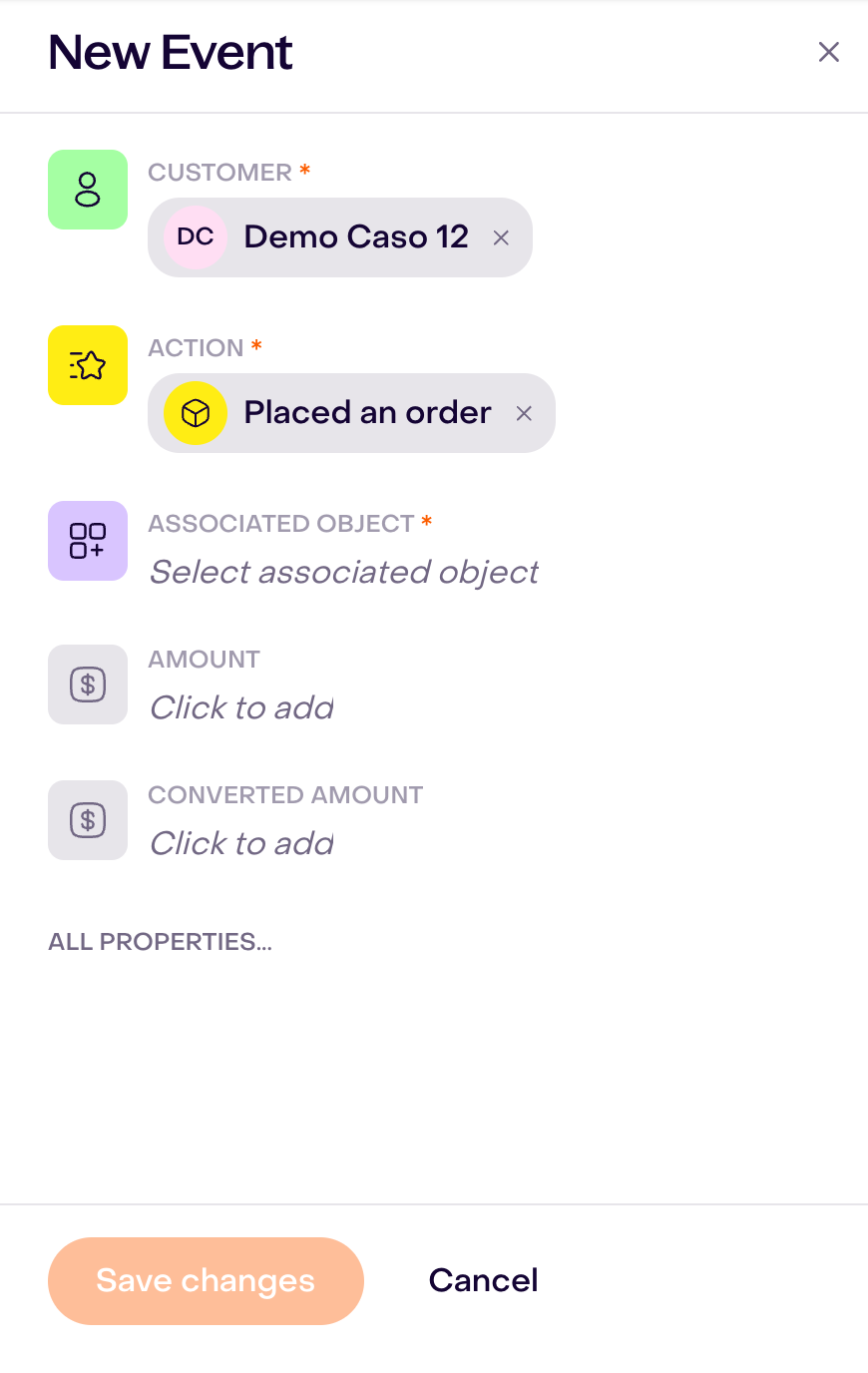
The event appears in the customer profile’s activity. Open an activity item to review its properties. New Event records that occurrence manually; it does not configure automatic tracking for future occurrences. Manual events should represent something that actually happened and should not be added only to force a customer into a segment or trigger.
To send events from a site or external system, follow Tracking events or External tracking.
Use the data across Hellotext
Once the data is available, you can use it to:
- Build segments from current profile properties or past activity.
- Insert property values into messages with personalization tags.
- Start journeys from an event or update a property in a journey step.
- Let playbooks use profile and activity signals when making decisions.
- Measure custom conversions when the action is configured as one.
- Review the customer’s history from the profile activity.
A property value does not prove that an event occurred, and an old event does not always describe the customer’s current state. Choose the source that matches the question you are asking.
Verify your setup
Before relying on a custom property or event:
- Test it with one customer profile.
- Confirm the property value or event appears on the intended profile.
- Check that names and value formats are consistent.
- Verify the expected segment, journey, playbook, or report can use it.
- Avoid sending the same event from both an integration and custom tracking.
- Document the source and owner so the data does not become stale or ambiguous.